Filming a demo video
Each activity can have your own demo video. Families see the video of whoever sent the homework; until you film one, they see a colleague's, or the steps on their own.
What to film
- Up to 2 minutes. Shorter is better: one clear go of the activity.
- No children. Only you, another consenting adult, or toys and props.
- Hold the phone upright, somewhere bright and quiet.
Recording on a laptop
- Open the activity from Activities and choose Record with this device's camera. Your browser asks to use the camera and microphone: allow it.
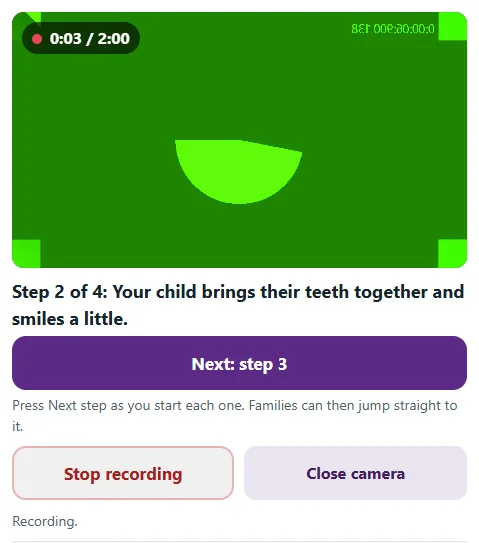
- Press Start recording. You get a 3 second countdown.
- As you start each step, press Next step. The step's words show above the button, so you don't lose your place. Families can then jump straight to each step.
- Press Stop recording, watch it back, then Use this video, or Record again.
On a phone
Choose Choose a video file: on a phone this can open the camera, or you can pick a video you've already filmed. Then press Upload video.
After uploading
The video is converted so it plays on any phone. That usually takes a minute or two, and you can leave the page. To change where steps start, choose Set where each step starts under the video.
New clinics can add up to 10 videos until we've checked the clinic, usually within a day.
Your own activities
New activity on the Activities page makes one from scratch. New activities are ready to send straight away. Copies of library activities start as drafts until you change them; drafts don't show on Send homework until you set their Status to Ready to send to families.
Next: Sending homework
Still stuck?
Tell us what's not working, or email support@carryoverkids.com.au. Your message comes straight to the people who build Carryover Kids.